Short answer
Laptop speakers usually sound muffled because something is covering them or a software setting is changing the sound. Move the laptop to a hard surface, then turn off audio enhancements. Dust and damaged speakers are less common causes.
Yesterday the laptop sounded fine. Today every video sounds as if it is playing from inside a sofa cushion, and sometimes it is.
Laptop speakers are small, they point in odd directions, and several layers of software sit between the music and the cone. Any of those can dull the sound. The good news is that most causes take minutes to rule out.
Why Do Laptop Speakers Sound Muffled?
Because something has changed in one of three places. It may be the surface under the laptop, the audio software, or the speakers themselves.
| Cause | Typical clue | Fix |
|---|---|---|
| Speakers covered by a soft surface or case | Sound clears when the laptop is lifted | Use a hard, flat surface |
| Audio enhancements | Dull or hollow after an update or new app | Turn enhancements off |
| The maker’s sound app | A preset such as Voice or Movie is active | Reset the preset |
| Driver changed by an update | Started after a Windows update | Roll back or reinstall the driver |
| Wrong format or spatial sound | Thin, echoing or distant sound | Change the format, switch spatial sound off |
| Dust and lint in the grilles | Gradual change over months | Brush the grilles |
| Damaged speaker | Buzzing or rattling at any volume | Repair |
Software causes are the most common on Windows laptops. Physical causes are more likely when the change was gradual, or when the laptop has been moved, dropped or spilled on.
A Two-Minute Test: Software or Hardware
A few quick checks show where the problem sits before any settings are changed.
- Lift the laptop off the surface and listen again.
- Play the same audio through headphones.
- Try a second app or website with different audio.
- Restart the laptop and test once more.
- Run the built-in speaker test in the maker’s diagnostics, if the laptop has one.
Each answer points somewhere. If lifting the laptop clears the sound, the speakers were covered. Headphones that sound muffled too point to a setting or a driver, since the internal speakers are not involved.
Clear headphones with dull speakers is less decisive. Windows keeps separate settings for each output, so the fault may still be software.
A maker’s diagnostic is the tiebreaker, because it plays tones outside Windows. Dell’s audio guide treats that hardware test as a dividing line, and tells owners to contact support if hardware diagnostic testing passes and audio still fails.
Something Is Covering the Speakers
This is the cheapest fix there is. Many laptops fire their speakers downward or sideways, and rely on a hard desk to reflect the sound.
| Speaker position | What blocks it |
|---|---|
| Underside, near the front edge | Beds, sofas, laps and thick desk mats |
| Either side of the keyboard | Keyboard covers, stickers and crumbs |
| Along the hinge | A screen opened only part way, or a hinge cover |
| Side edges | Snap-on cases and sleeves left half on |
Put the laptop on a bare table and compare. If the sound opens up, nothing is broken. A duvet is simply a very effective silencer.
Hard-shell cases and vinyl skins deserve a second look. Some cover the speaker slots completely, and the change is easy to miss because it happens the day the case goes on.
How Do You Turn Off Audio Enhancements in Windows?
Through the Sound settings, and it takes under a minute. Microsoft lists it among its first fixes for audio problems.
- Open Start, then Settings, then System, then Sound.
- Under Output, select the laptop speakers.
- Find Audio enhancements, under Advanced settings.
- Set it to Off, then play the same audio again.
Microsoft’s support page explains why this helps, saying audio enhancements, unsupported audio formats, driver issues or stopped audio services may be affecting sound output.
Enhancements are processing layers, such as bass boost, virtual surround and loudness levelling. They are tuned for one set of speakers, and they can make speech sound hollow or distant when something goes wrong.
Switch them off as a test, not as a verdict. If the sound improves, leave them off. If the laptop sounds thinner without them, the cause lies elsewhere, so turn them back on.
The Laptop Maker’s Sound App
Windows is not the only software shaping the sound. Most laptops ship with an audio app from the maker or its partner.
Common ones include Dolby Audio or Dolby Atmos, DTS, Waves MaxxAudio, Realtek Audio Console and Bang & Olufsen Audio Control. Each has presets for music, movies, voice and games.
A preset in the wrong mode is a classic cause. Voice mode cuts bass and treble to favour speech, and music then sounds boxed in. A surround mode can make stereo music sound distant.
Open the app and choose its default or Music preset, or reset it. These apps can also break. Dell notes that audio may stop working if security software blocks the MaxxAudio installer or its background service.
Did a Windows Update Change the Audio Driver?
It may have. A driver replaced during an update is a frequent cause of sound that changed overnight.
The laptop’s speakers are tuned through the maker’s own driver. When Windows swaps it for a newer or more generic one, the tuning can be lost. The speakers still work, but they sound flat or muffled.
Microsoft’s guide to fixing sound problems in Windows gives four driver options, all in Device Manager under Sound, video and game controllers.
| Option | Where | When to use it |
|---|---|---|
| Update driver | Right-click the audio device | First attempt |
| Roll Back Driver | Properties, Driver tab | The sound changed after an update |
| Uninstall device | Right-click, tick the box to remove the driver, restart | The driver seems corrupted |
| Generic High Definition Audio Device | Update driver, browse, pick from a list | To test without the maker’s driver |
Rolling back is the natural first move after an update. If that button is greyed out, download the audio driver from the laptop maker’s support page and install it.
Audio Format, Spatial Sound and Other Settings
A few smaller settings can also dull the sound. None takes long to check.
| Setting | Where | What to try |
|---|---|---|
| Default format | Sound, the output device, Advanced | Choose a different format and test |
| Spatial sound | Sound, the output device | Switch it off for the internal speakers |
| Output device | Speaker icon on the taskbar | Confirm the laptop speakers are selected |
| Audio services | Services app | Restart Windows Audio and Windows Audio Endpoint Builder |
| Audio troubleshooter | Settings, System, Troubleshoot | Run it once |
Spatial sound is built for headphones. On two small speakers it can add an echo that reads as distance. Switch it off and compare.
The output device check sounds too obvious to matter. It catches more cases than it should, since Windows can quietly switch to a monitor or a Bluetooth device.
Why Does a MacBook Sound Muffled?
Usually for the plainest reasons, since a Mac has fewer audio layers to go wrong. Check the output and the balance first.
Apple’s guide says to open System Settings, click Sound, then Output, and select the device to use. Choose the internal speakers, then check that the Balance slider sits in the middle.
App volume matters too. Apple notes that volume controls inside apps can only equal or sit below the computer’s output volume. A low slider in a music app can therefore make the whole laptop seem quiet.
After that, restart the Mac and install any pending macOS update. MacBook speakers sit beside or beneath the keyboard, so crumbs and keyboard covers are worth checking as well.
Dust and Lint in the Grilles
Dust is a slow cause. It builds over months and takes the edge off the treble first.
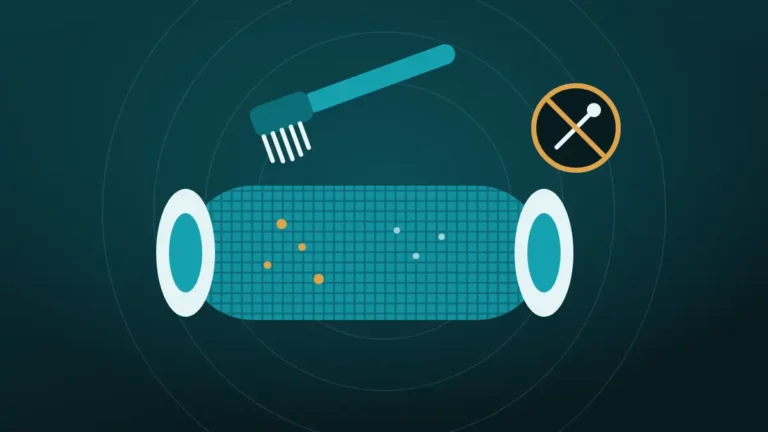
Laptop grilles are fine perforations, often beside the keyboard or along the underside. Lint, crumbs and skin oil collect there, and a film over the holes dulls the sound.
Cleaning them takes a few minutes:
- Shut the laptop down and unplug it.
- Brush the grille with a soft, dry brush, such as a clean paintbrush.
- Tilt the laptop so loosened dust falls away from the holes.
- Wipe the area with a dry microfibre cloth.
- For underside grilles, turn the laptop over onto a towel first.
Keep liquids away from the openings. Dell’s guide says never to use water, cleaning sprays or a damp cloth on any port, and the same caution suits speaker holes.
Compressed air needs care. A close blast can drive dust inward, so hold the can well back and use short bursts, if at all. Pins and toothpicks should stay out of the holes, as they do on a phone.
Will a Speaker Cleaning Tone Help a Laptop?
A little, and only when dust is the cause. A cleaning tone moves the speaker cone, which can shake loose particles off the grille.
Laptop speakers are small and move very little, so the effect is modest. The tone works best after brushing, with the grille facing down where the design allows it. Expect a small improvement at most.
It can be played from the cleaner on the Clean My Speaker home page in any browser. Use the Muffled or dusty cycle at a moderate volume.
A tone cannot fix a setting, a driver or a damaged cone. If the sound changed overnight, start with the software steps above, since dust does not arrive overnight.
How Do You Know If Laptop Speakers Are Damaged?
By the kind of noise they make. Damage sounds rough, whereas a blocked or badly processed speaker sounds dull.
| Symptom | Likely meaning |
|---|---|
| Dull but clean, on all audio | Blockage or software |
| Buzzing or rattling on bass notes | Loose or torn speaker cone |
| Crackling at every volume | Damaged speaker or connection |
| Distortion only at high volume | The speakers are being overdriven |
| One side silent or much quieter | Failed speaker or cable, after checking balance |
| The fault also appears in the maker’s diagnostic | Hardware |
Distortion at full volume alone is not damage. Small laptop speakers clip when pushed, and lowering the volume or the bass boost usually stops it.
Liquid is the other route to damage. A spill near the keyboard can reach the speakers and the board beneath them. More on these symptoms is in crackling phone speaker: blockage or blown driver, and the same signs apply.
Repair, Replace or Work Around It
The right next step depends on what the tests showed. Most laptops land in the first list.
Keep working through the software fixes when:
- Headphones sound muffled too
- The change followed an update or a new app
- The sound improves with enhancements off
- The maker’s speaker test sounds normal
Arrange a repair when:
- The speakers buzz, rattle or crackle in the maker’s diagnostic
- One speaker is silent with the balance centred
- The fault began after a drop or a spill
- A clean driver install changed nothing
Laptop speakers are inexpensive parts, though fitting them means opening the case. Check the warranty first.
There is also a perfectly respectable workaround. External speakers or headphones bypass the internal ones entirely, and they sound better than most laptops did when new.
Frequently Asked Questions
Why Do Laptop Speakers Sound Muffled All of a Sudden?
A sudden change usually comes from software. A Windows update may have replaced the audio driver, or an enhancement or sound preset was switched on. Check whether the laptop is on a soft surface, then turn audio enhancements off and test again.
How Do You Fix Muffled Laptop Speakers on Windows 11?
Open Settings, then System, then Sound. Select the speakers and set Audio enhancements to Off. If that does not help, change the default format and roll back the audio driver in Device Manager. Running the audio troubleshooter is also worth a minute.
Why Is the Sound Muffled on Speakers but Fine on Headphones?
Windows stores separate settings for each output, so an enhancement may apply only to the speakers. The speakers may also be covered or dusty. Turn enhancements off for the speaker output, move the laptop to a hard surface, and brush the grilles.
Can Dust Make Laptop Speakers Sound Muffled?
Yes, although it happens slowly, as dust and lint settle over the grille holes and dull the treble over months. A soft, dry brush clears most of it, and a hard, flat desk keeps underside grilles from collecting more.
Does a Speaker Cleaner Sound Work on a Laptop?
It helps only with loose dust on the grille. The tone moves the speaker cone and can shake particles free, though laptop speakers move very little. It cannot fix muffled sound caused by settings, drivers or damage.
Why Do Laptop Speakers Sound Distorted at High Volume?
Small speakers cannot handle much power, so they clip when pushed to the limit. Bass boost and loudness enhancements make it worse. Lower the volume slightly and switch enhancements off. Distortion at low volume is different and suggests damage.
Is It Safe to Use Compressed Air on Laptop Speakers?
Only with care, since a close blast can push dust further in and stress the small cone. Hold the can well back, use short bursts, and keep it upright so no liquid sprays out. A soft brush is the safer first choice.
Can Laptop Speakers Be Replaced?
Yes. They are small, inexpensive modules connected by a cable to the main board. Replacing them means opening the laptop, so a repair shop or the maker’s service centre is the usual route. Check the warranty before paying for it.
Conclusion
When laptop speakers sound muffled, the cause is usually outside the speakers. Put the laptop on a hard surface, turn off audio enhancements, and check the maker’s sound app and the audio driver.
Brush the grilles if the change was gradual. Buzzing, rattling or a fault that shows up in the maker’s diagnostic points to hardware, and that is a repair job. Until then, headphones work fine.